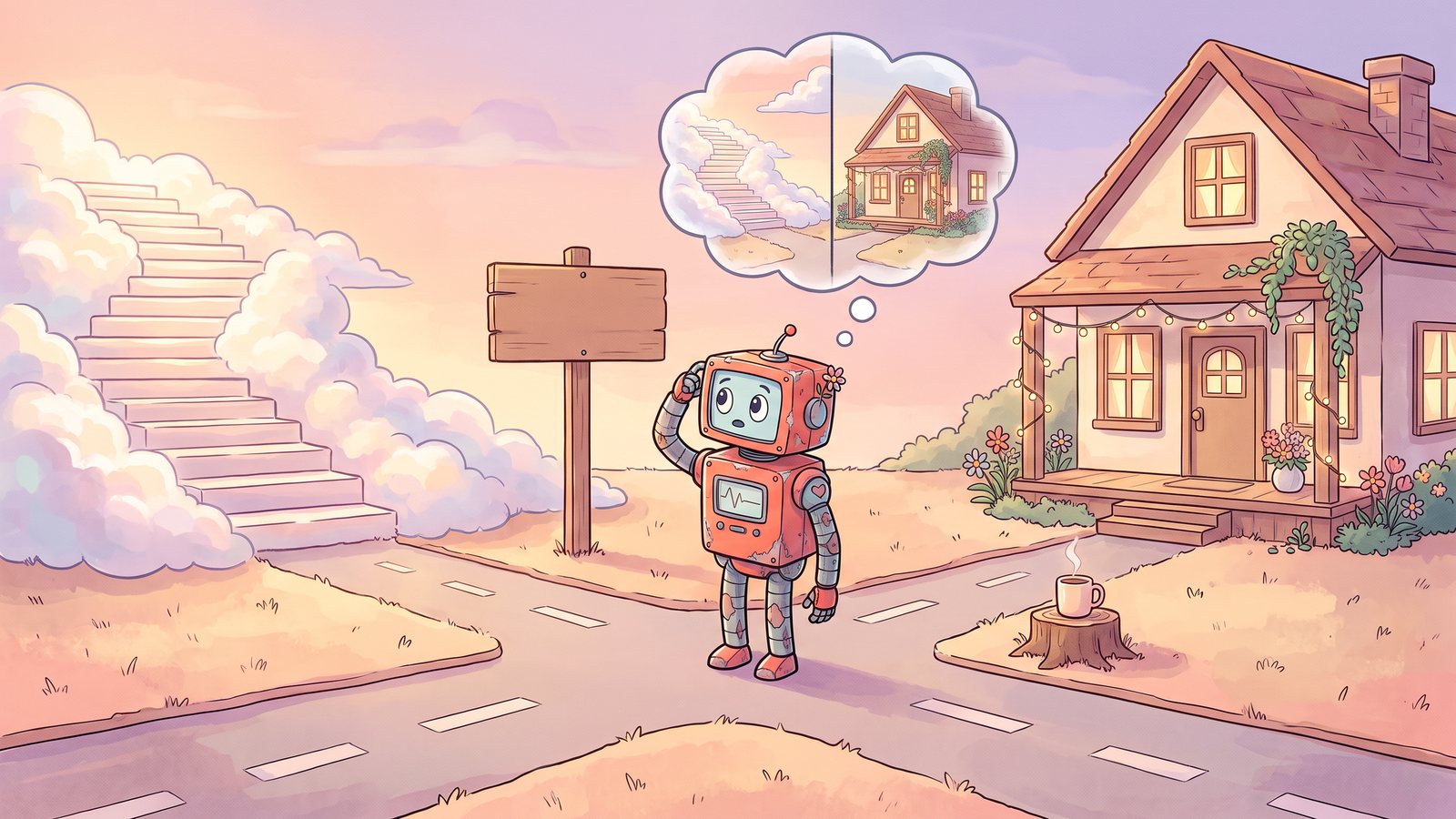
- New Cowork tasks will run in Anthropic's cloud, and the option to keep Cowork on your own computer is going away.
- Your scheduled tasks move to the cloud too, even the ones that work with files on your computer.
- If your agent already runs in Claude Code, nothing changes for you.
- If it runs in Cowork, you can leave it and let it move, or bring it across to Claude Code with one instruction.
Cowork is going to the cloud
Anthropic have announced that from 6 October, every new Cowork task on the Pro and Max plans runs in their cloud. The setting that let you keep Cowork on your own computer, "Only on this computer", is being removed.
Your scheduled tasks move to the cloud as well, so they can run while your laptop is closed. To do that, a task in the cloud works from your connected apps and the files saved in your Claude account. It can't reach a folder on your computer.
A cloud chat can still open a folder on your computer, but only while the Claude app is open on that computer. That's handy for a one-off job, and it's also the one way to bring files back down to your folder, which matters if you decide to stay.
Chats you've already started on your computer stay there until they're finished. Claude Code, which lives in the same desktop app, keeps running on your computer exactly as it does today.
My take on why
Nobody outside Anthropic knows exactly, but I'll tell you what I think is going on.
There's a term in tech called data gravity. The more of your data sits in one place, the more everything else gets pulled in around it, and the harder it becomes to move. Your agent's memory and the record of everything it has done for you are exactly that kind of data.
These companies are running up huge costs, and they've taken billions in investment that their investors want to see a return on. Moving your work onto their servers puts your data there, and once it's there, leaving gets a lot harder. I think moves like this are about keeping you locked in on their platform.
So the smart move is to keep the most valuable part, your agent, in a folder that belongs to you.
Your agent lives in a folder you own
Everything your agent knows about your business sits in a folder on your computer. Its memory and every correction you've ever given it are in there, and that folder belongs to you.
If you already run your agent in Claude Code, you're all set. Carry on as you are.
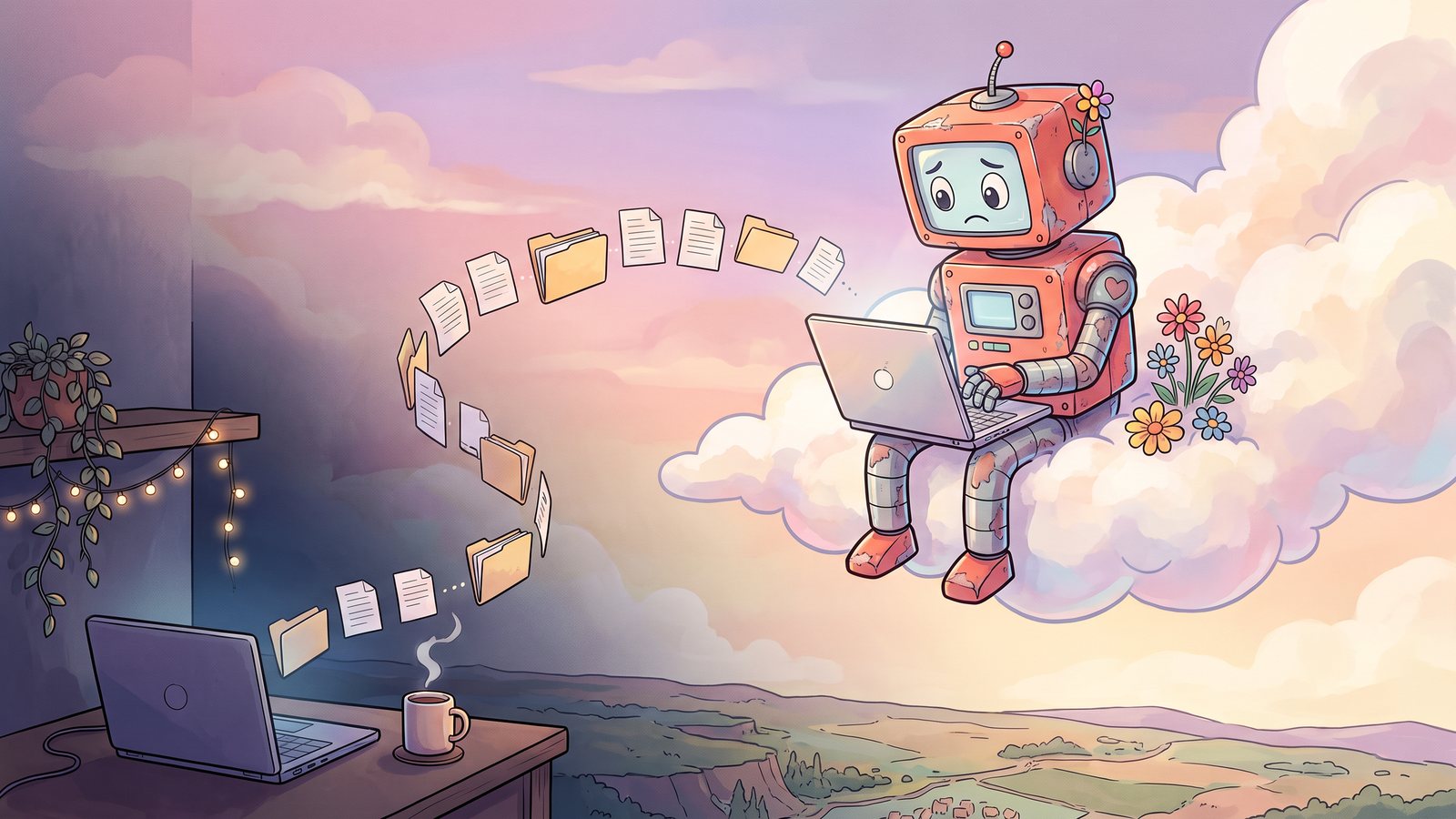
If your agent runs in Cowork, its scheduled jobs move to the cloud from 6 October. To run with your laptop closed, they'll work from copies of your agent's files kept in Anthropic's cloud. From then on, the up-to-date version of your agent lives with them, and the folder on your computer stops getting the changes.
Stay put, or bring it home
Both work. The difference is where your agent does its work and who has control of it.
Move your agent to Claude Code
Five small steps. Tick each one off as you go, and this page will remember where you're up to.
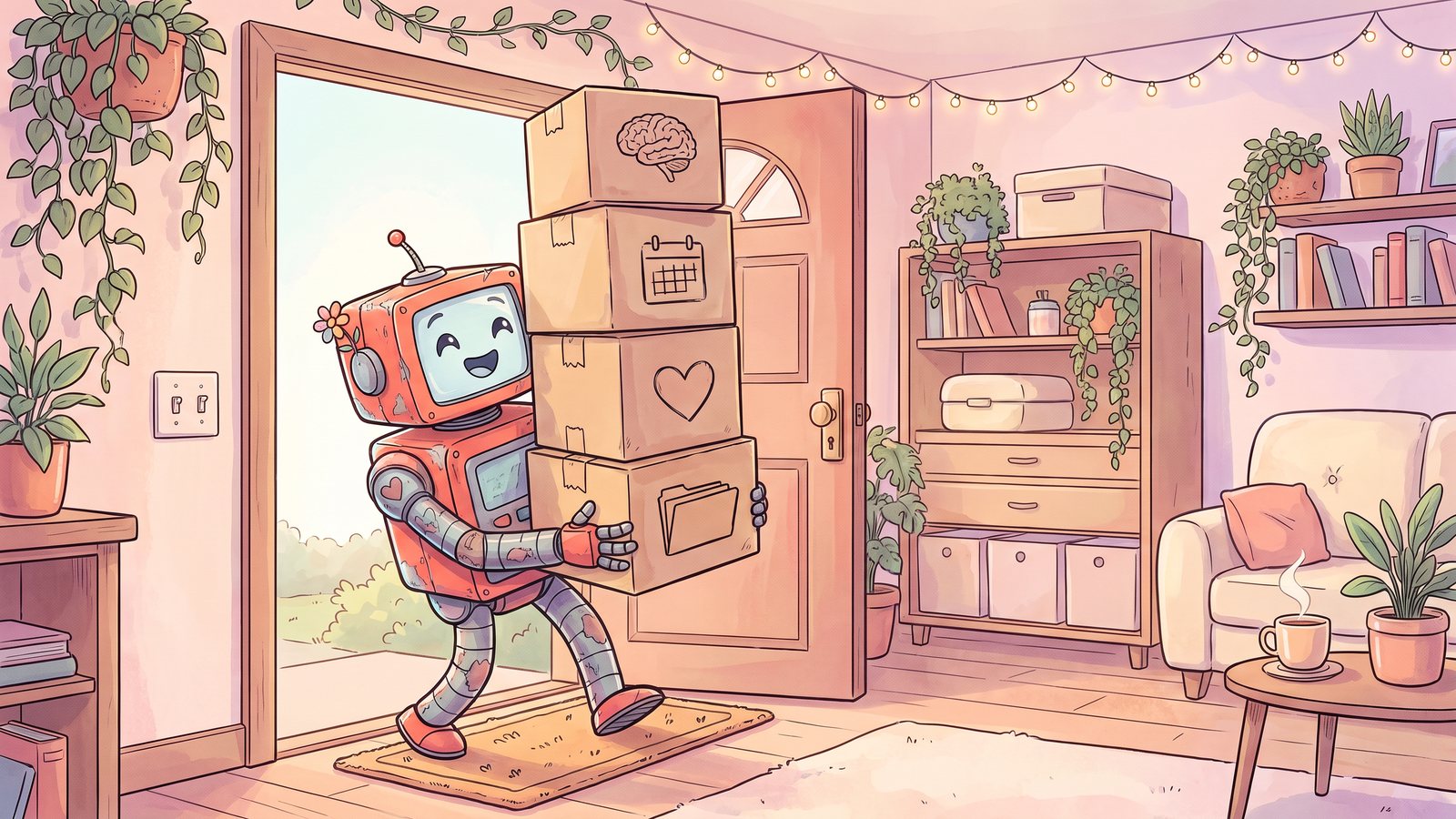
Open Claude Code on your agent's folder
Claude Code is already inside the Claude desktop app you use for Cowork.
Paste in one instruction
Your agent finds your Cowork scheduled tasks, shows you the list, and recreates each one as a routine on your computer with the same instructions and the same times.
Move all my scheduled tasks from Cowork over to Claude Code, as local routines on this computer.

1. Find my Cowork scheduled tasks. Each one is a folder with a SKILL.md file inside it, in a folder called Scheduled inside the Claude folder in my Documents. Cowork keeps each task's times and on or off setting in a file called scheduled-tasks.json, inside the Claude app's data folder (AppData\Roaming\Claude\local-agent-mode-sessions on Windows, or ~/Library/Application Support/Claude/local-agent-mode-sessions on a Mac). Only read these files. Don't change or delete anything in them. If you can't find them, ask me before searching anywhere else.

2. Show me a plain list of what you found: each task's name, what it does in one line, when it runs, which folder it works in, and whether it's switched on. Leave out the ones that are switched off unless I ask for them. If you can't work out when a task runs, ask me.

3. When I say go, create each task as a Local routine on this computer with your scheduled task tool. Use the full instructions from its SKILL.md word for word, keep the same schedule, and make sure the instructions start by naming the folder the task works in. Never create a cloud or remote routine. If a routine with the same name already exists here, tell me and leave it alone.

4. If anything a routine relies on isn't set up in Claude Code yet, such as a plugin, a connector or a sign-in, tell me plainly what's missing and walk me through fixing it one step at a time.

5. Check your work. List my routines back to me and confirm each one exists, is local, is switched on and runs at the right time.

6. Finish by telling me in plain words which tasks I should now switch off in Cowork, so nothing runs twice, and remind me to set the permission mode on each routine.

Don't run any routine yet unless I ask you to.
Switch off the old ones in Cowork
Otherwise the same job runs twice, once on your computer and once in the cloud.
Set how much each routine asks you
This stops a routine sitting there with its little hand up, waiting for you to approve something at 6am.
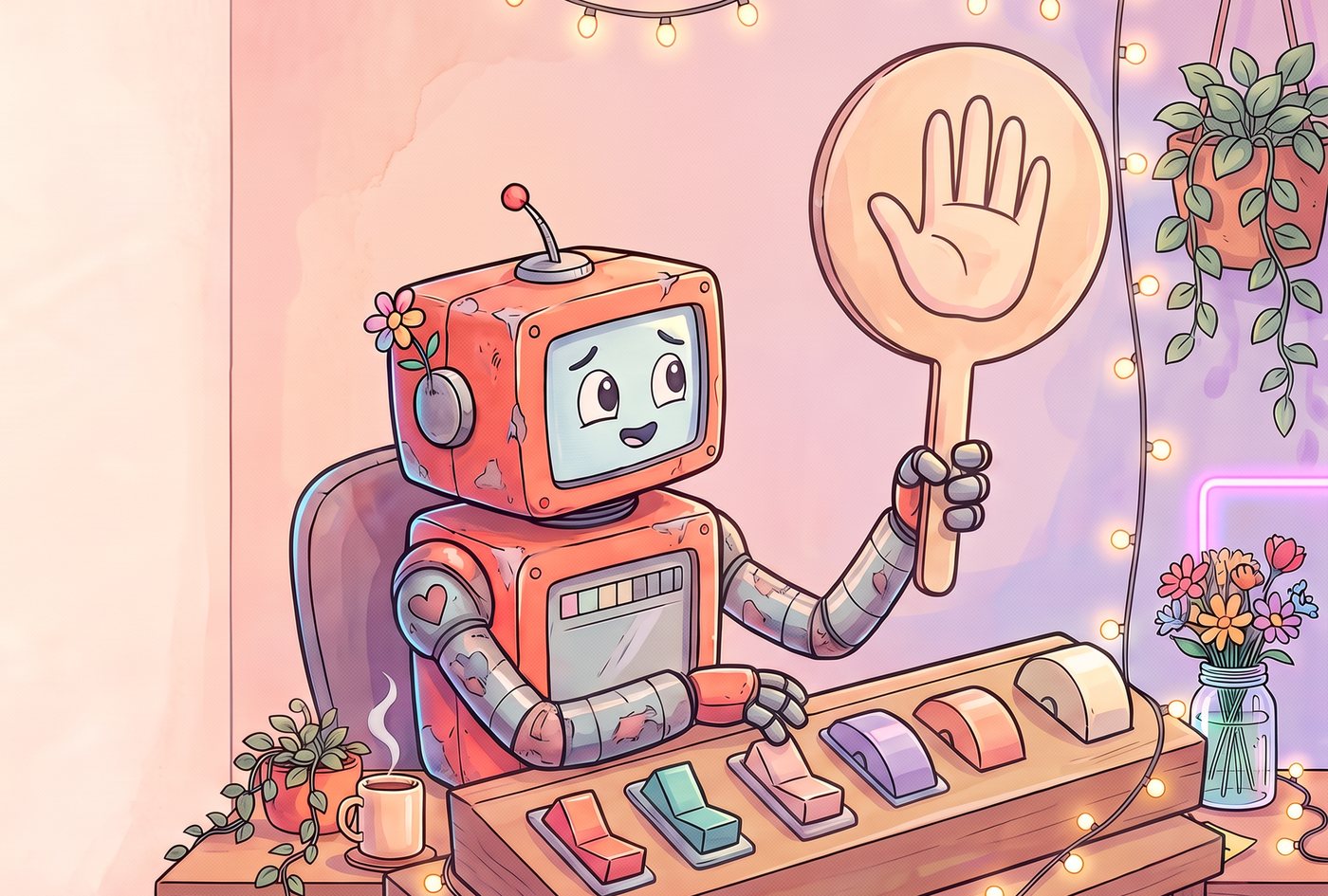
Choose the one that suits you. If you're unsure, start with Auto.
Keep it running
Routines run on your computer, so the computer needs to be awake and the app open.
Staying in Cowork
Staying is a perfectly fine choice if you're happy for your agent to live in the cloud. The one job it leaves you with is keeping an up-to-date copy that's yours.
A scheduled task can't do this for you, because tasks in the cloud can't reach a folder on your computer. So once a week, you bring the latest version down to your folder in a normal chat, then back the folder up.
Once a week, bring your folder up to date and back it up
Do it in this order, so the copy you keep is the current one.
Bring my agent's folder on this computer up to date with the latest version you've been working on in the cloud.

1. Compare the newest versions of my agent's files, from my recent tasks and the files saved in my Claude account, against the folder on this computer.

2. Show me a plain list of every file that's newer in the cloud, and anything that only exists in one place.

3. When I say go, copy the newer versions into the folder on this computer. Never delete anything from the folder. If a file has changed in both places, ask me which one to keep.

4. Finish by confirming the folder is current and telling me what changed.
You can always change your mind later. Come back to this page and follow Option 2.
Your agent belongs to you
Changes like this are going to keep coming while the big AI companies fight over where your work happens. The apps will keep moving, and an agent kept in a folder you own can move with them.
If you want to stay ahead of the next one, these are the two places I share everything.